How to Move Your Minecraft Worlds to Switch 2 and Claim the Free Upgrade
GAME MODE Staff·Nov 2, 2026· 4m read
Digital owners upgrade free in most regions until January 31, 2027. Here’s the order to move your worlds in, the Mario pack to claim and how to fix a stalled migration.
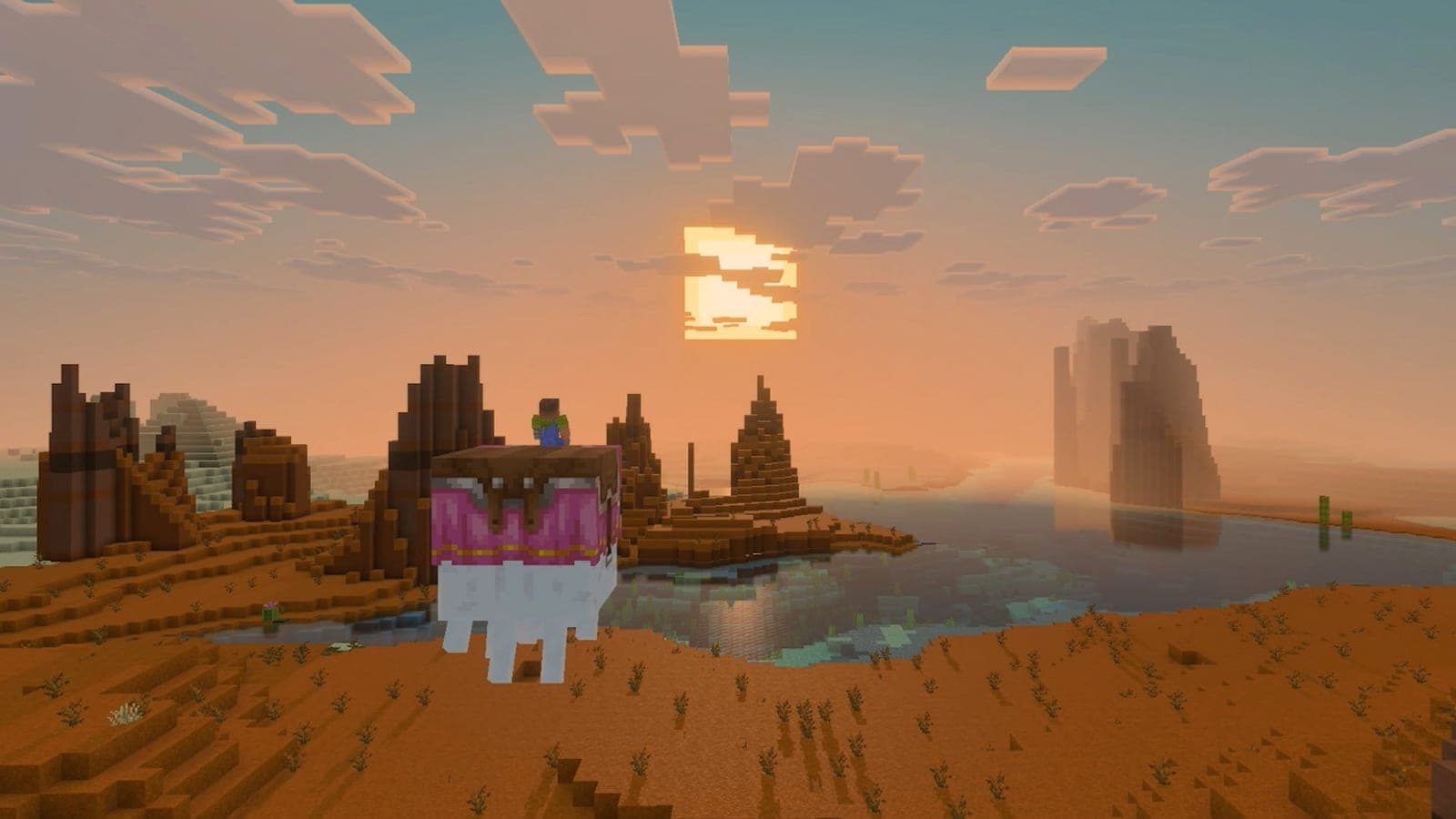
Minecraft for Nintendo Switch 2 came out on October 27, 2026, and if you own Minecraft for Nintendo Switch digitally, the upgrade to the Switch 2 Standard Edition is free in most regions until January 31, 2027, at 9AM PT. Your worlds, progress and builds can come with you, as long as their data is on the Switch 2 first.
Which upgrade does your copy get?
For digital owners, the offer is available through the Nintendo eShop only. The Standard Edition upgrade is free in all territories except Japan, Taiwan and Thailand, where it costs 100 JPY, 30 NTD and 25 THB respectively. Minecraft’s Help Center lists upgrades to the Deluxe Collection at $9.99 USD and the Ultimate Collection at $19.99 USD until January 31, 2027, and the Standard Edition upgrade at $29.99 USD after that.
The offer for physical copies is less clear, because official sources describe it differently. Mojang and Nintendo say that launching Minecraft for Nintendo Switch on a Switch 2 before the deadline brings up an in-game message inviting you to upgrade to the digital Ultimate Collection at a discount. Minecraft’s Help Center lists 50% off the Deluxe Collection instead.
How to move your worlds and claim the upgrade
In the words of Mojang’s Help Center:
The Switch 1 version was backward-compatible, but Minecraft for Nintendo Switch 2 is a full port.
- Start from the Bedrock Version. If you’re coming from the old Minecraft: Nintendo Switch Edition, first move your data to Minecraft (Bedrock Version).
- Move your Switch data to the Switch 2. Nintendo’s system transfer happens during the Switch 2’s initial setup: on your Switch, open System Settings, select System, then System Transfer to Nintendo Switch 2. On the Switch 2, complete initial setup until the system transfer screen appears and select Begin System Transfer. You need an internet connection, and Nintendo says data from the source console is deleted after the transfer.
- Already set up the Switch 2? A system transfer would mean restoring it to factory settings and setting it up again. If your Switch 2 user is linked to the same Nintendo Account, use Nintendo’s save data transfer feature instead; Nintendo Switch Online members can also download Save Data Cloud backups.
- Get the upgrade in the Nintendo eShop. Search for Minecraft for Nintendo Switch 2, select it, then select the version you want. Details go to the email address registered to your Nintendo Account, or the parent or guardian’s account for a child account.
- Launch Minecraft for Nintendo Switch 2. The first time you launch it, a one-time migration runs automatically if save data from a Nintendo Switch is detected. Once it’s complete, it won’t run again.
- Catch stragglers with Sync Old Worlds. To migrate worlds one by one, or find ones left behind, go to Settings > Storage, scroll to the bottom and select Sync Old Worlds. Once they’ve synced, select Manage to see the old worlds you can convert.
- Claim the Super Mario Mash-Up Pack. You have to claim it manually: search “Super Mario Mash-Up” in the Marketplace and claim it for free. If you migrate a Mario world or have a Mario skin equipped, a prompt sends you to its Marketplace page.
- Link a Microsoft account. Cross-platform play requires one. Select Sign in with a Microsoft Account, get the 8-digit Linking Code, enter it on the Remote Connection page on a phone or PC, then sign in with a personal account, not a work or school one.
What if the migration stalls or worlds go missing?
- Migration stopped partway: select the Retry button that appears.
- Not enough storage: you’ll be asked to clear space on the Nintendo device to finish the transfer. The game file is 1.5 GB.
- Worlds missing on another profile: worlds are tied to individual Nintendo Accounts, so run the migration for each one.
- Minecoins: Minecoins you owned before October 27, 2026 moved to a Legacy Wallet that works across platforms, doesn’t expire and is spent first. New Minecoins bought on Nintendo devices from that date only work on those systems.
- Realms: some online features, including Realms, may require an active Nintendo Switch Online membership on the Nintendo Account signed in to the console.
- The Mario world: cross-play is disabled, so only other Switch 2 players can join it online, and split-screen turns off Vibrant Visuals.