A Stream Deck+ Layout You Can Find Without Looking
GAME MODE Staff·Aug 25, 2026· 2m read
Use keys for actions and dials for adjustments, then build a compact control page around the moments you repeat every stream.
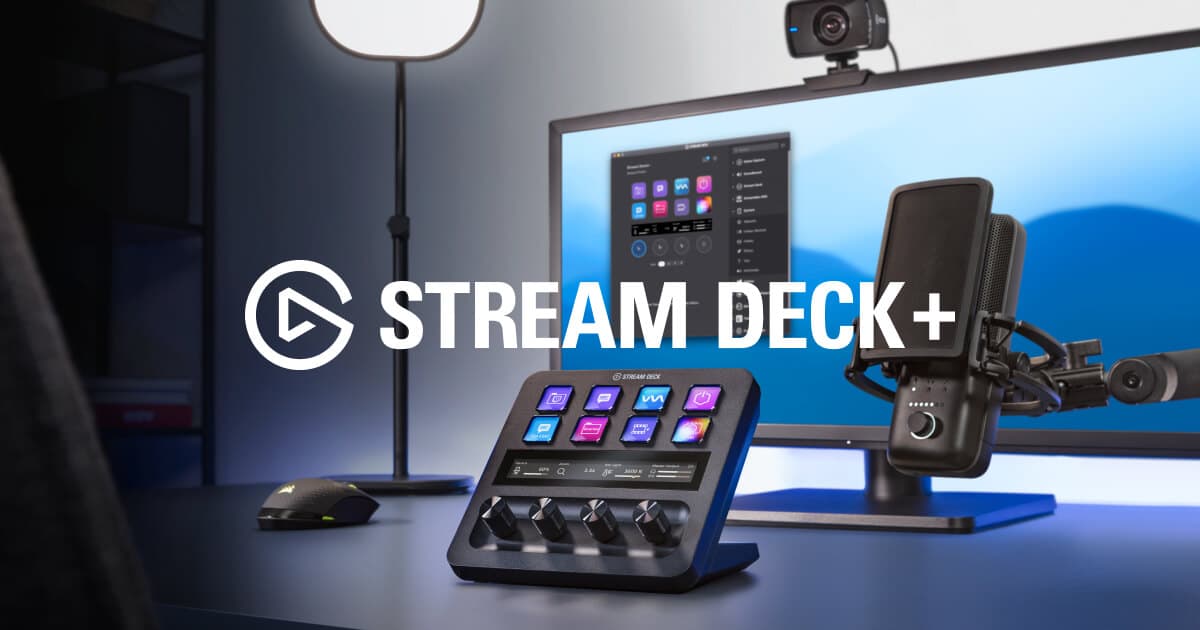
Elgato's Stream Deck+ combines eight LCD keys, four dials, and a touch strip. Its appeal is the division of labor: buttons can trigger actions, while dials can adjust values such as audio or lighting through supported software and plugins. (Elgato Stream Deck+ overview)
Start with the controls you reach for
Give the first page a small, memorable purpose. Put your game scene, break scene, and microphone mute where your hand can find them. Use a dial for an audio source you regularly adjust, and label it so the displayed information makes sense at a glance.
Avoid filling every space just because it is available. If a control appears only once during setup, it may belong in a secondary page rather than beside the mute button you need immediately when someone enters the room.
Rehearse transitions and recovery
Run a local recording and move through a normal session: start, introduce the game, take a break, and return. Confirm what each control changes and whether its visual state accurately reflects the app. Test again after updating plugins or changing your audio devices.
Elgato's touch strip supports page navigation and contextual interaction, but the most valuable shortcut is one you can use confidently under pressure. Build the layout around your routine, then expand it when a repeated annoyance suggests a clear new control. The hardware should reduce the attention spent managing a stream so more of it stays with the people watching.
Cited sources (1)
- Elgato Stream Deck+ overview ↗elgato.com